If you've never bought an app through Salesforce AgentExchange (also known as AppExchange), the process can feel unfamiliar. The good news: it's short, and most of it happens inside your own Salesforce org.
If you're billed in the US, your DirGen subscription is set up as a private offer. That's an offer we build for your exact seat count and start date and send to your org through Salesforce. You review the pricing, dates, and terms on screen, click Accept, and Salesforce takes care of the invoice and turns on your licenses.
Private offers through AgentExchange are for customers billed in the US. If you're elsewhere, email [email protected] and we'll set you up with an order form at the same price.
There's one setup step your admin needs to do first, and it takes about two minutes. This guide walks through the whole process, start to finish.
Why a private offer?
Private offers are how Salesforce lets partners like DirGen sell with pricing and terms tailored to each customer, while the purchase itself stays inside Salesforce. For you, that means:
- Everything in writing first. The offer page shows the negotiated pricing, start and end dates, and contract terms before you commit. Accepting it places the order, so there's no separate paperwork to sign.
- Approved inside your own org. No new vendor portal and no credit card form. Only people with the Manage Billing permission can accept an offer, so purchasing stays with the right people.
- Salesforce handles the invoice. Salesforce bills you as DirGen's billing agent: one annual invoice on NET 30 terms, paid by bank debit.
- Licenses turn on automatically. When you accept, Salesforce creates the order and provisions your licenses. No license keys, and no waiting on a manual setup.
In Salesforce's own words, once you accept:
“Salesforce generates an order that appears in the partner and Salesforce systems. You receive your product licenses and an invoice, as outlined in the offer.”
Salesforce, Receive Private Offers from AgentExchange Partners
Before you start
What you'll need
- Admin access to Setup for the one-time opt-in in Step 1.
- The Manage Billing permission for whoever will accept the offer and whoever pays the invoice. Step 1 shows how to grant it.
- Your production org, the one where you'll use DirGen. The offer is sent to that specific org. If you're on the free trial, it's the org you installed it in.
- A seat count: one license for each person who will use DirGen. Licenses are $480 per user per year.
- A start date for your 12-month subscription.
- Billing and shipping addresses. Salesforce calculates tax from the shipping address.
Get your exemption certificate on file with Salesforce before you accept the offer. It can't be applied afterward.
Step 1: Turn on partner offers
Salesforce won't deliver a private offer to an org that hasn't opted in, so this comes first. It's a one-time switch, and you can flip it before you've even requested an offer.
- Click the gear icon in the top-right corner and choose Setup.
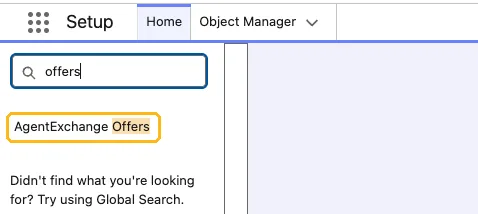
- In the Quick Find box, type offers and select AgentExchange Offers.
- Under Opt-in to AgentExchange Offers and Agree to Terms and Conditions, switch the Opt-in toggle on. It reads Active once you’re opted in.
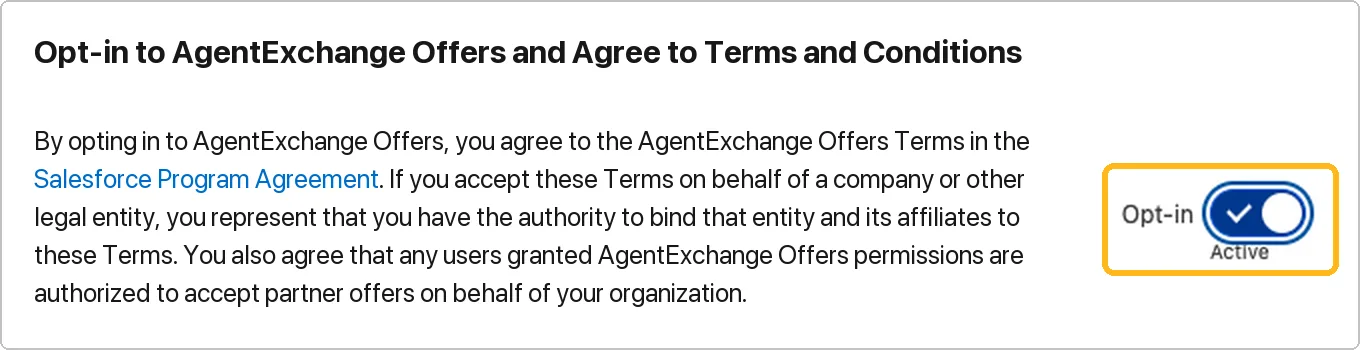
Read the panel before you switch it on. Opting in also means anyone your org gives permission to accept offers can accept them on its behalf, which is one more reason to give Manage Billing only to the people who approve purchases.
Then make sure the right people have Manage Billing
Whoever will accept the offer, and whoever pays the invoice, needs the Manage Billing user permission. Without it, they won't see the offer at all. Check whether they already have it. If they don't, a permission set is the simplest way to add it:
- In Setup, type Permission Sets in Quick Find, open it, and click New.
- Give it a clear name, such as “Manage Billing”, and click Save.
- Click System Permissions, then Edit. Check Manage Billing and click Save.
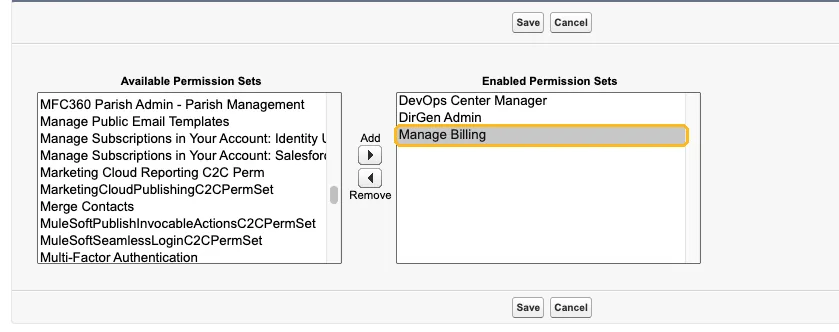
- Assign it to the people who will approve and pay. On each person’s user record, go to Permission Set Assignments, click Edit Assignments, move Manage Billing into Enabled Permission Sets, and click Save.
After you opt in, take a quick screenshot of the AgentExchange Offers page showing Active and include it when we confirm details in Step 3. If the opt-in didn't save, Salesforce can't deliver the offer, and a screenshot saves a round trip.
Step 2: Request an offer on the DirGen listing
Anyone on your team can do this part.
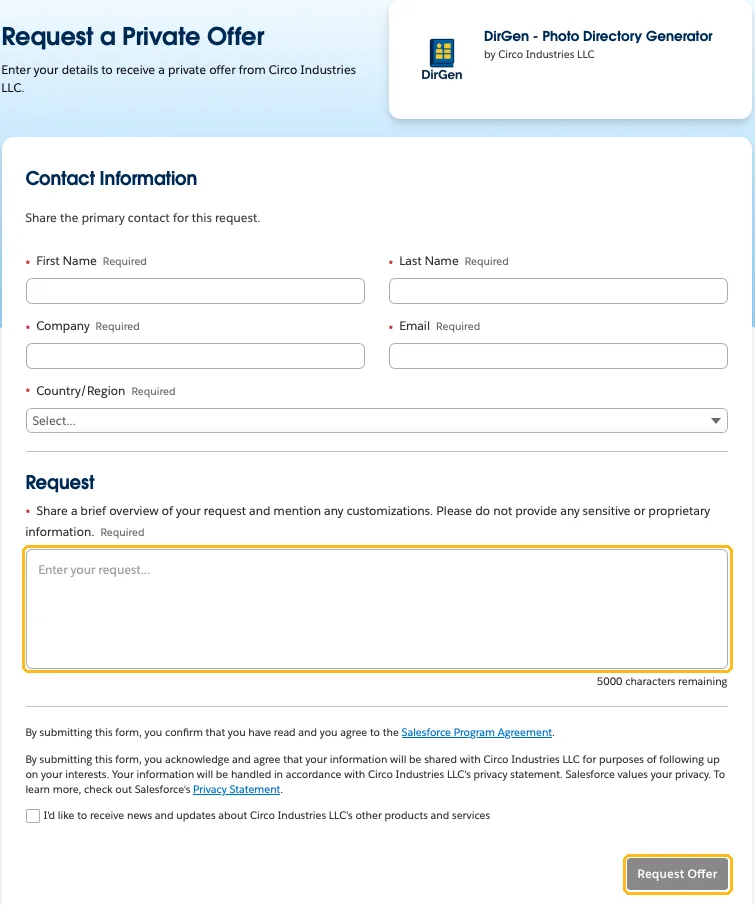
- Open the DirGen listing on AgentExchange. Open the DirGen listing
- Click Request a Private Offer.
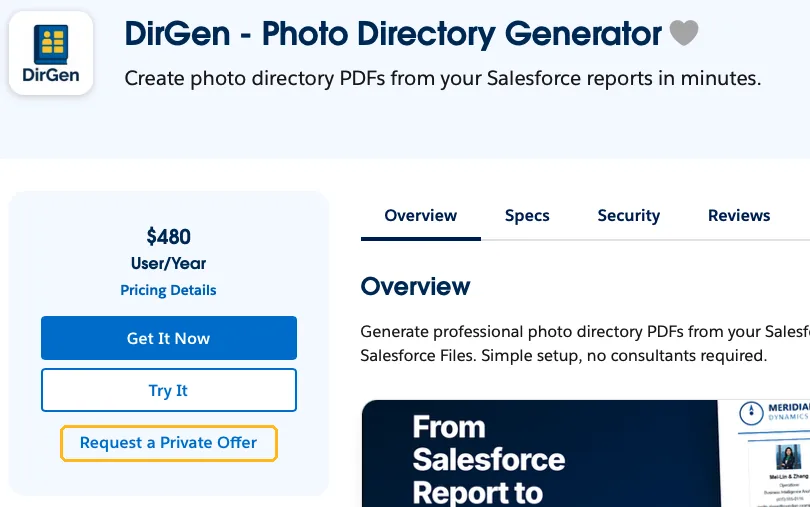
- Fill in your name, company, email, and country or region. In the Request box, tell us how many seats you need and when you'd like to start.
- Click Request Offer.
Step 3: Confirm the details with us
We'll get back to you quickly to confirm a few details, then send your offer right away. We'll only ask for what we don't already have:
- Seats and start date.
- Who will accept the offer in your org. They need Manage Billing.
- Who should receive the invoice.
- Billing and shipping addresses, and whether you're tax-exempt.
- Which org to send it to. We may ask for your Org ID, which you'll find in Setup under Company Information as Salesforce.com Organization ID.
Before anything shows up in Salesforce, we'll send a short “offer on its way” note with your seat count, annual total, and start date, so there are no surprises. Then the offer goes out to your org.
Step 4: Review and accept the offer
The person with Manage Billing logs in to your org and opens the offer:
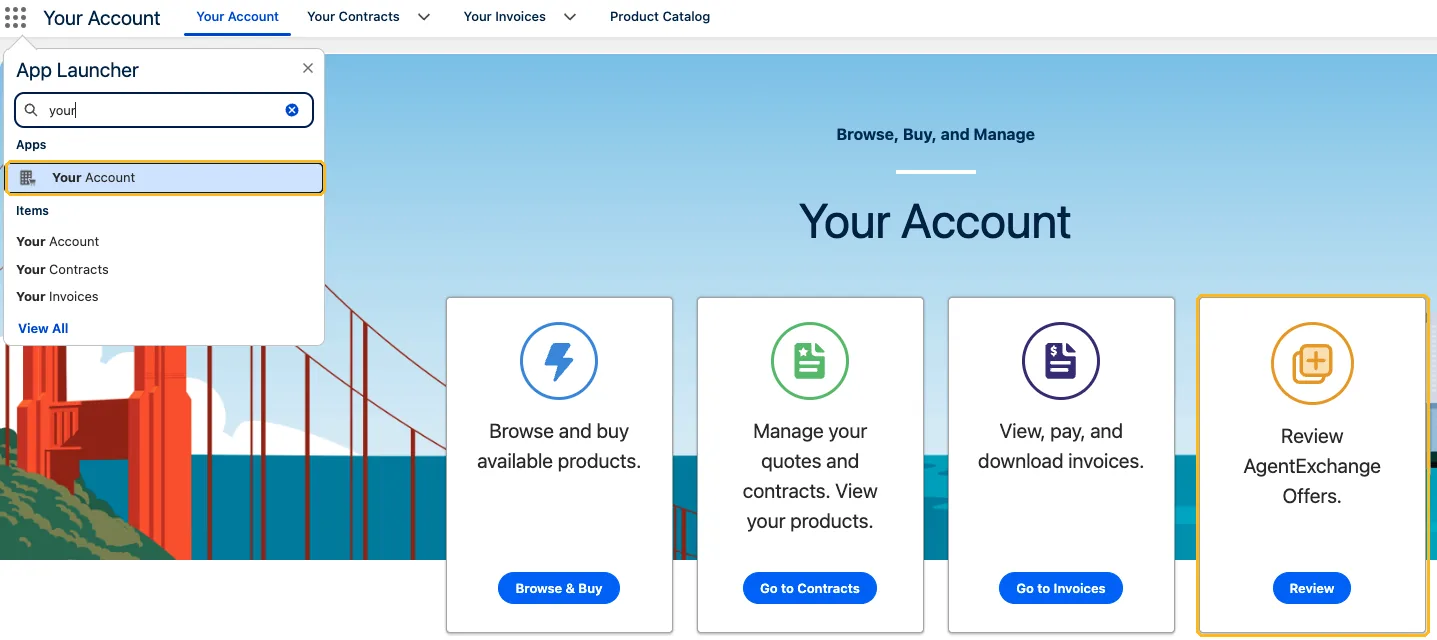
- Open the App Launcher, search for Your Account, and open the app.
- On the Review AgentExchange Offers tile, click Review.
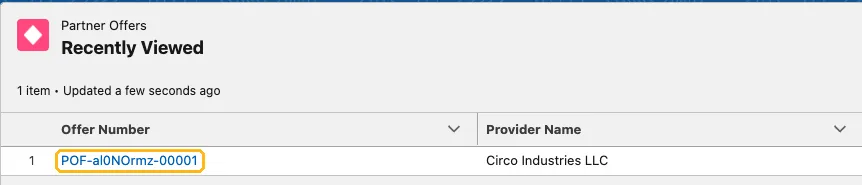
- In the Partner Offers list, click the offer number. The provider is Circo Industries LLC.
A sent offer can't be edited, and an accepted one can't be cancelled. Double-check the seat count and dates first. If anything looks off, email us before you click Accept and we'll fix it.
- On the Details tab, check the service start and end dates, the contract term, the payment terms, and the subtotal.
- Click Accept.
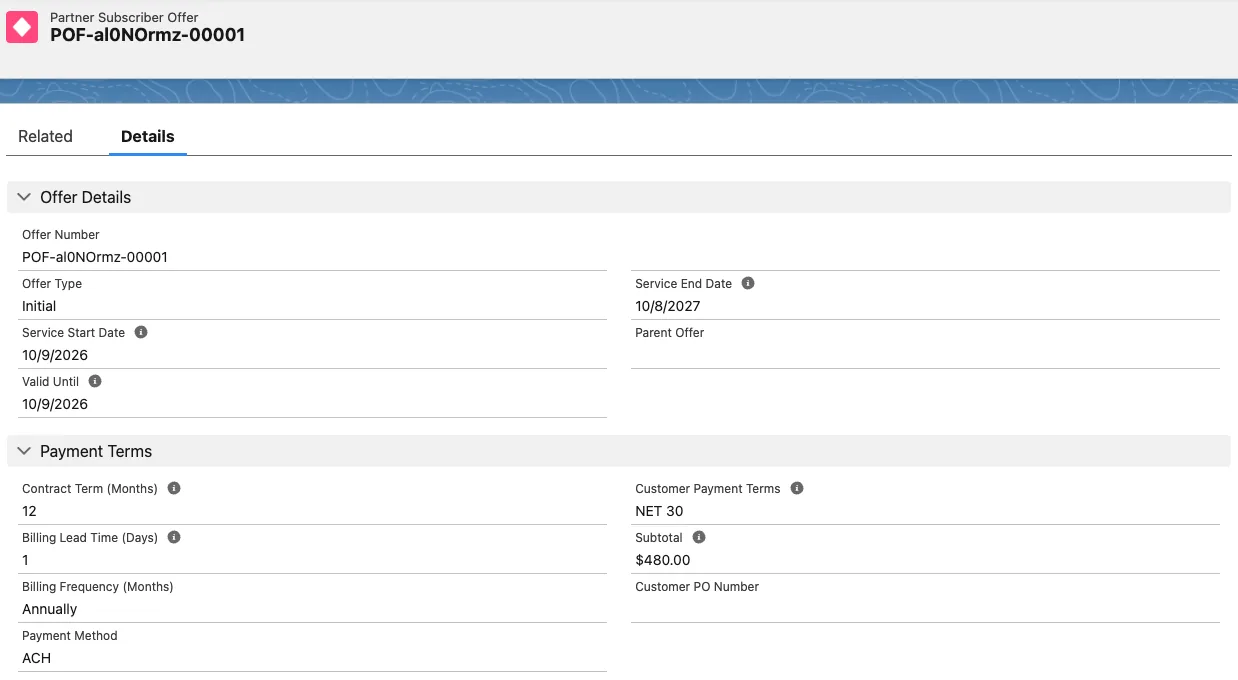
You can accept an offer until its Valid Until date, which is the same as its start date. If that date slips past, no problem: email us and we'll send a fresh one.
After you accept
That's the buying part done. Salesforce creates the order and turns on your DirGen licenses. Around your start date, Salesforce sends the invoice: NET 30, paid by bank debit.
Give your people access
Each person who will use DirGen needs both a DirGen license and a DirGen permission set. Neither is assigned automatically.
- Assign a license: in Setup, go to Installed Packages, click Manage Licenses next to DirGen, then Add Users.
- Assign a permission set: give DirGen User to everyone who will use DirGen, or DirGen Admin to whoever manages DirGen's org-wide settings.
Without a license, DirGen won't appear in that person's App Launcher, even if they have the permission set.
Renewals and adding seats
- Renewal: subscriptions bought through an AgentExchange private offer don't renew automatically. We'll reach out before your term ends and send a renewal offer that you accept the same way.
- More seats mid-term: we'll send an add-on offer, priced pro rata for the rest of your term. Seats can't be reduced mid-term.
Troubleshooting
Can't find AgentExchange Offers in Setup
Opting in is done from Setup, so you'll need admin access. Type offers into Quick Find and look for AgentExchange Offers. If it still doesn't appear, email [email protected] with a screenshot and we'll sort it out together.
The offer isn't showing in Your Account
Check three things: the person looking has the Manage Billing permission, they're logged in to the org the offer was sent to, and that org is opted in to partner offers (Step 1). If all three check out, email us.
Our offer expired before we accepted it
An offer is valid until its start date. Email us and we'll send a fresh one with a new start date.
Something in the offer is wrong
Don't accept it. Sent offers can't be edited, so email us and we'll send a corrected one.
Frequently asked questions
Can we try DirGen before we buy?
Yes. DirGen has a 14-day free trial with no credit card and no commitment. Click Try It on the AgentExchange listing. You can request a private offer during or after your trial.
Is there a minimum number of seats?
No. DirGen is $480 per user per year, and you can add licenses at any point in your term with an add-on offer.
Can we pay by credit card?
Not on this route. Private offers are invoiced by Salesforce on NET 30 terms and paid by bank debit (ACH).
Do we have to sign a contract?
There's no separate document to sign. Accepting the offer in Salesforce places the order, under the DirGen Terms of Service.
We're billed outside the US. Can we still buy DirGen?
Yes. Private offers through AgentExchange are for customers billed in the US. Everyone else gets an order form invoiced directly by Circo Industries, at the same price. Email [email protected] to start.
Does the subscription renew automatically?
No. Subscriptions bought through an AgentExchange private offer don't auto-renew. Before your term ends, you'll get a renewal offer that you accept the same way.
Salesforce's own reference for this process: Receive Private Offers from AgentExchange Partners.
Ready when you are
Request a private offer on AgentExchange and we'll take it from there. Want to see DirGen in your own org first? Start the 14-day free trial from the same page.
Request a private offerWritten by Marlin, a Salesforce admin in Portland, Oregon, and the creator of DirGen. Questions about buying, or does a screen look different in your org? Email [email protected] and we'll help.